
Wakepy Mode Lifecycle#
Introduction to Modes#
Modes are what you enter, stay in for a while, and exit from. For example, keep.running is a Mode where automatic suspend is inhibited. Each Mode is implemented with one or more Methods like org.gnome.SessionManager or SetThreadExecutionState.
Using Wakepy Modes in python#
Modes can be used in two ways. As context managers:
from wakepy import keep

with keep.running():
    USER_CODE
which is roughly equal to (See: PEP-343)
mode = keep.running()
mode.__enter__()
try:
    USER_CODE
finally:
    mode.__exit__() # cleanup guaranteed even if Exceptions in USER_CODE
and with the decorator syntax:
from wakepy import keep

@keep.running
def long_running_task():
    USER_CODE
which is roughly equal to
from wakepy import keep

def long_running_task():
    with keep.running():
        USER_CODE
Note
The rest of this document uses the context manager syntax in the examples because it makes the Mode lifecycle steps more explicit. The decorator syntax is just some syntactic sugar and uses a context manager internally automatically every time the decorated function is called.
Wakepy Mode Activation on High Level#
The diagram below illustrates how wakepy selects and prioritizes Methods, then activates a Mode.
Selected Methods: When a
Modeinstance is created, all Methods that support the Mode are filtered using the optionalomitormethodsinput arguments to form the Selected Methods list.WakepyFakeSuccess: The
WAKEPY_FAKE_SUCCESSoption may insert an additional WakepyFakeSuccess Method to the beginning of the list.Prioritization: The Prioritized Methods list is created by reordering Selected Methods according to the
methods_priorityargument.Platform Support: Methods incompatible with the current platform are removed.
Activation: During activation, each platform-supported Method is tried in priority order until activation succeeds or no Methods remain.
ActivationResult: The results are collected in an
ActivationResultinstance.
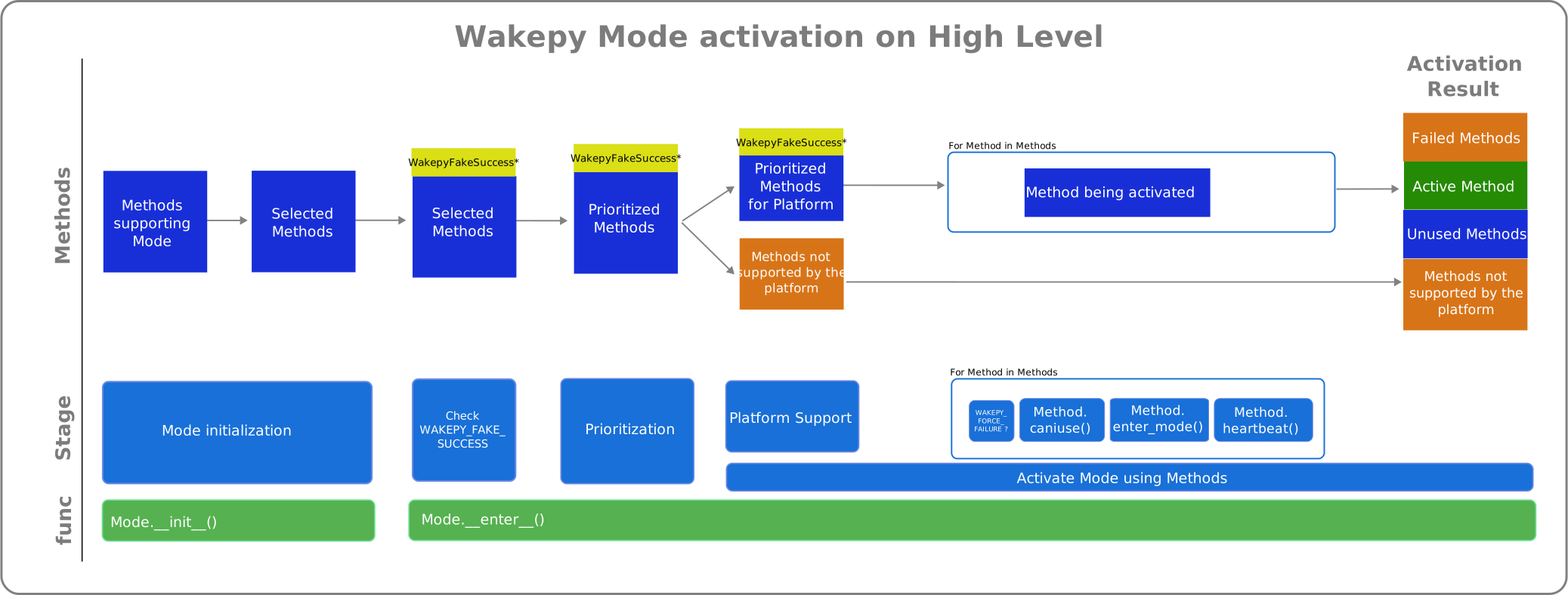
Fig. 1 How wakepy methods are selected#
Overview of the Mode Lifecycle#
To make it easier to discuss what is happening, we use the code from this code block and split the Mode initialization and activation in the context expression into two statements and add comments and line numbers:
 1from wakepy import keep
 2
 3# Returns an instance of Mode
 4mode = keep.running()
 5# Inactive
 6
 7with mode:
 8    # Active OR Activation Failed
 9    USER_CODE
10    # Active OR Activation Failed
11
12# Inactive
We can now compare the code with the actions in the Activity Diagram.
Mode Activity Diagram#
The wakepy.Mode Activity Diagram in Fig. 2 shows the Activities related to activating, working in and deactivating a mode. The arrows on left side show how these relate to python code. The possible States are marked between activities in cursive font, in light blue.
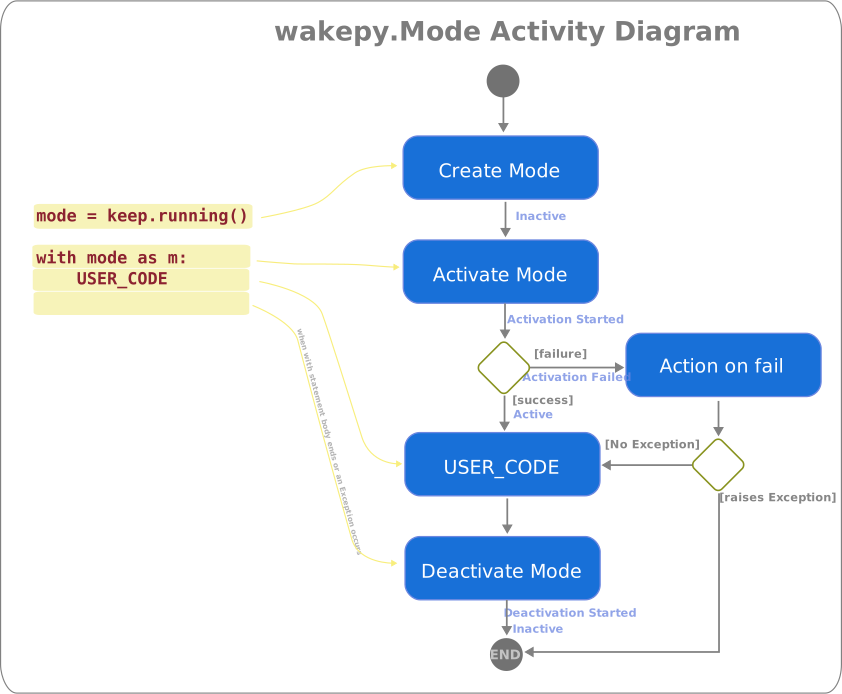
Fig. 2 The Activity Diagram related to activating and deactivating wakepy Modes. Different states are marked as cursive light blue font.#
Creating a Mode instance#
This corresponds to the action “Create Mode” in Fig. 2. When you create an instance of the Mode class with
1from wakepy import keep
2
3# Returns an instance of Mode
4mode = keep.running()
5# Inactive
the instance will initially be in the Inactive state. When using the decorator syntax, the python interpreter creates a new Mode instance every time it calls the decorated function.
Activating a Mode#
In order to set your system into a Mode, you need to activate it (“Activate Mode” in Fig. 2). As Modes are context managers it is possible to simply use:
 7mode = keep.running()
 8
 9# Inactive
10with mode: # activates
11    # Active OR Activation Failed
12    USER_CODE
13    # Active OR Activation Failed
14
15# Inactive
This will put the Mode into Active or Activation Failed state (depending of the outcome of the activation process). Here is the same using the decorator syntax:
 1mode = keep.running()
 2
 3@keep.running
 4def long_running_task():
 5    # Active
 6    USER_CODE
 7    # Active
 8
 9
10# Inactive
11long_running_task() # activates and deactivates
12# Inactive
The python process creates a new Mode context manager instance and uses it every time a decorated function is called. If the process enters a Activation Failed state, the Action on Fail occurs (See: Fig. 2). This action may be an exception, a warning, or a custom action as determined by the on_fail input parameter.
The Fig. 3 presents an activity diagram from the “Activate Mode” step of Fig. 2. The steps are:
Check WAKEPY_FAKE_SUCCESS: If the
WAKEPY_FAKE_SUCCESSenvironment variable is set to a truthy value, theWakepyFakeSuccessmethod is inserted at the beginning of the methods list. This special method has.caniuse(),.enter_mode(),.heartbeat()and.exit_mode()which always succeed without making any real system calls, which is useful for testing.Prioritize Methods: Methods are prioritized with
methods_priorityfrom the user, if given.Platform Support: Methods not supported by the current platform are removed from the list of methods to be tried. (Check current platform against
Method.supported_platform)Activate with a Method: Try to activate the Mode using the Method with highest priority. This is explained in more detail in the next section. Note that only one Method is ever used to activate a Mode; the first one which does not fail, in priority order.
This process happens in the Mode._activate method and it returns an ActivationResult object, the used wakepy.Method instance (if successful) and a Heartbeat instance (if used).

Fig. 3 The Activity Diagram for the “Activate Mode” action of the Fig. 2.#
Activate with a Method#
The Fig. 4 presents the activity diagram for the “Activate with a Method” action from the Fig. 3. This is what wakepy does with each Method, in order:
Check WAKEPY_FORCE_FAILURE: If the
WAKEPY_FORCE_FAILUREenvironment variable is set to a truthy value, the activation is forced to fail immediately. This is useful for testing error handling. If bothWAKEPY_FAKE_SUCCESSandWAKEPY_FORCE_FAILUREare set,WAKEPY_FORCE_FAILUREtakes precedence.Check requirements: Checks requirements using
Method.caniuse(). Some Methods could require a certain version of a specific Desktop Environment, a version of 3rd-party software, or some D-Bus service running. During this step, if some 3rd-party software has known bugs on certain versions, the Method may be dismissed.Activate the Mode: Tries to activate the Mode using
Method.enter_mode(), if defined.Start heartbeat: Tries to start the heartbeat using
Method.heartbeat(), if defined. This will run in a separate thread.
Heartbeat is not yet supported
Heartbeat support is not yet fully implemented. Ticket: wakepy/wakepy#109
If at least one of Method.enter_mode() or Method.heartbeat() is defined and they do not raise exceptions, the Mode activation is successful. This process happens in the activate_method function and it returns a MethodActivationResult object and a Heartbeat instance (if used and activation was successful).

Fig. 4 The Activity Diagram for the “Activate with a Method” action of the Fig. 3.#
Staying in a Mode#
This part of the Mode lifecycle is where the user code (“USER_CODE” in Fig. 2) runs. This could be a simple while loop with sleeps until KeyboardInterrupt, or a long-running task. During this activity, the Mode will be in Active or Activation Failed state (as seen from Fig. 2). If the used Method has a heartbeat() method, it will be called every Method.heartbeat_period seconds in a separate heartbeat thread.
Deactivating a Mode#
The “Deactivate Mode” activity in Fig. 2 occurs automatically when the with block is exited; between lines 10 and 11 in the code below:
 7with mode:
 8    # Active
 9    USER_CODE
10    # Still Active
11
12# Inactive
This is handled automatically by the context manager. What actually gets called is Mode.__exit__(), which in turn calls Mode._deactivate(), which triggers deactivating the used Method. Deactivating a Method means stopping the Method.heartbeat() calls (if heartbeat is used) and calling Method.exit_mode().
Note
When using the with statement or the decorator syntax, the context manager takes care of calling Mode._deactivate() even if USER_CODE raises an exception.